
Selling an Item for Sale
Use Item Sales Entry to manually record the sale of Items for Sale (multi sale) during your event.
💡 Good to Know: The selected item remains active after submission, making it easy to enter multiple sales quickly.
Enter an Item Sale
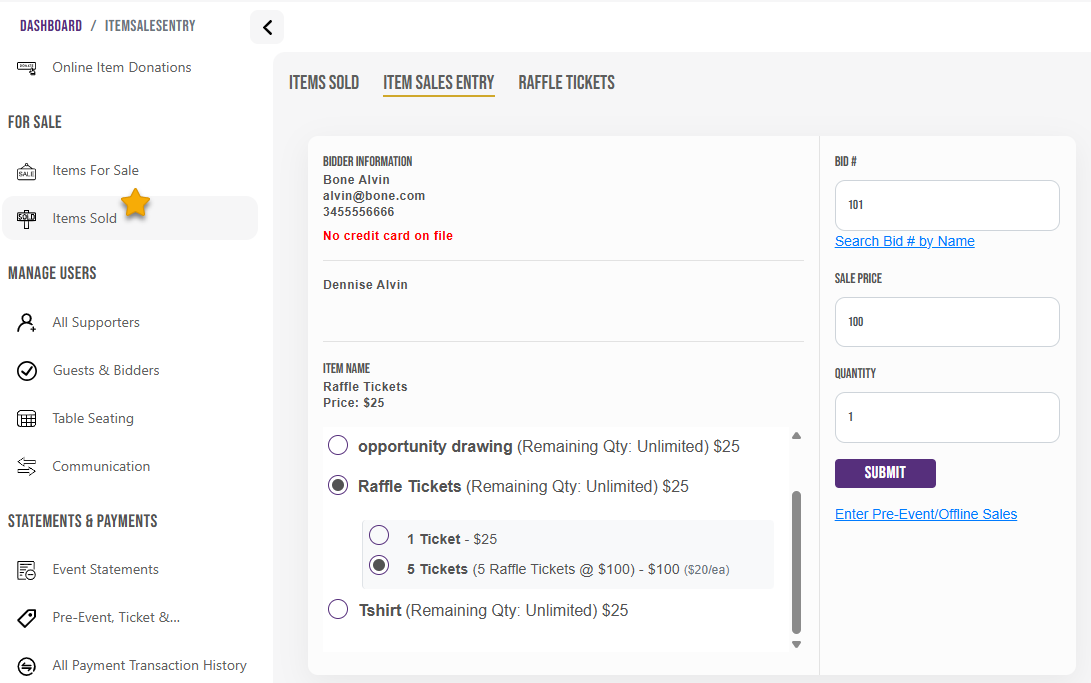
- Go to Items Sold → Item Sales Entry
- Select the item by clicking the radio button
- Verify the automatically populated:
- Sale Price
- Quantity
- If using raffles, select the appropriate raffle level
- Enter the guest's Bid Number
- Press Enter to accept the sale price
- Press Enter again to accept the quantity
- Press Enter a final time to submit the sale
⚠️ Important: Quantity can be adjusted before submitting if the guest is purchasing more than one item.
Printable Quick Help Guide:
(see below for printing instructions)
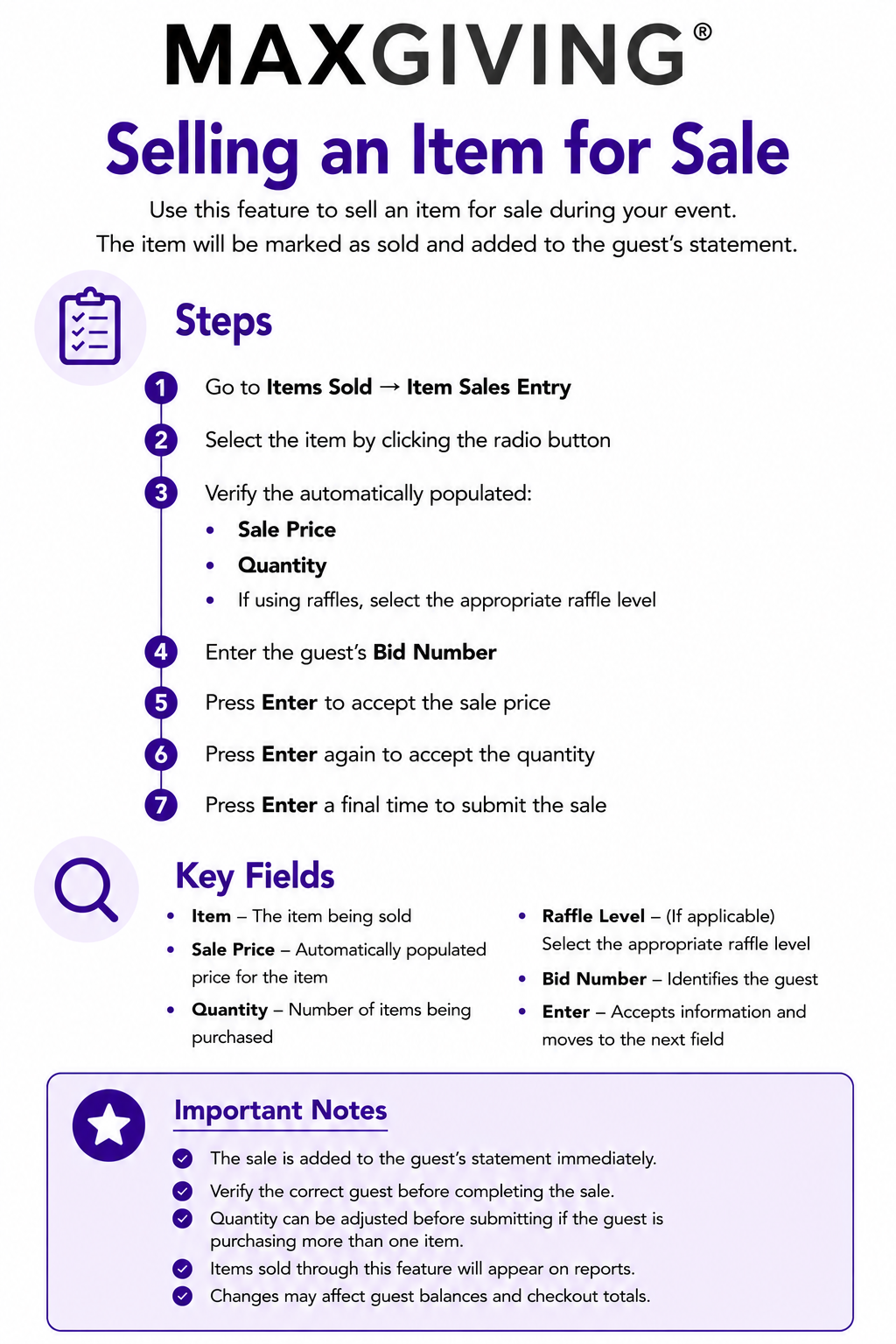
How to Print This Guide
- Right-click on the image of the guide
- Select Save Image As…
- Save the file to your computer
- Open the saved image
- Click Print (or use Ctrl + P / Command + P)
💡 Good to Know
For best results, print using Full Page or Fit to Page settings to ensure proper sizing and clarity.