Viewing a Contact's Giving History
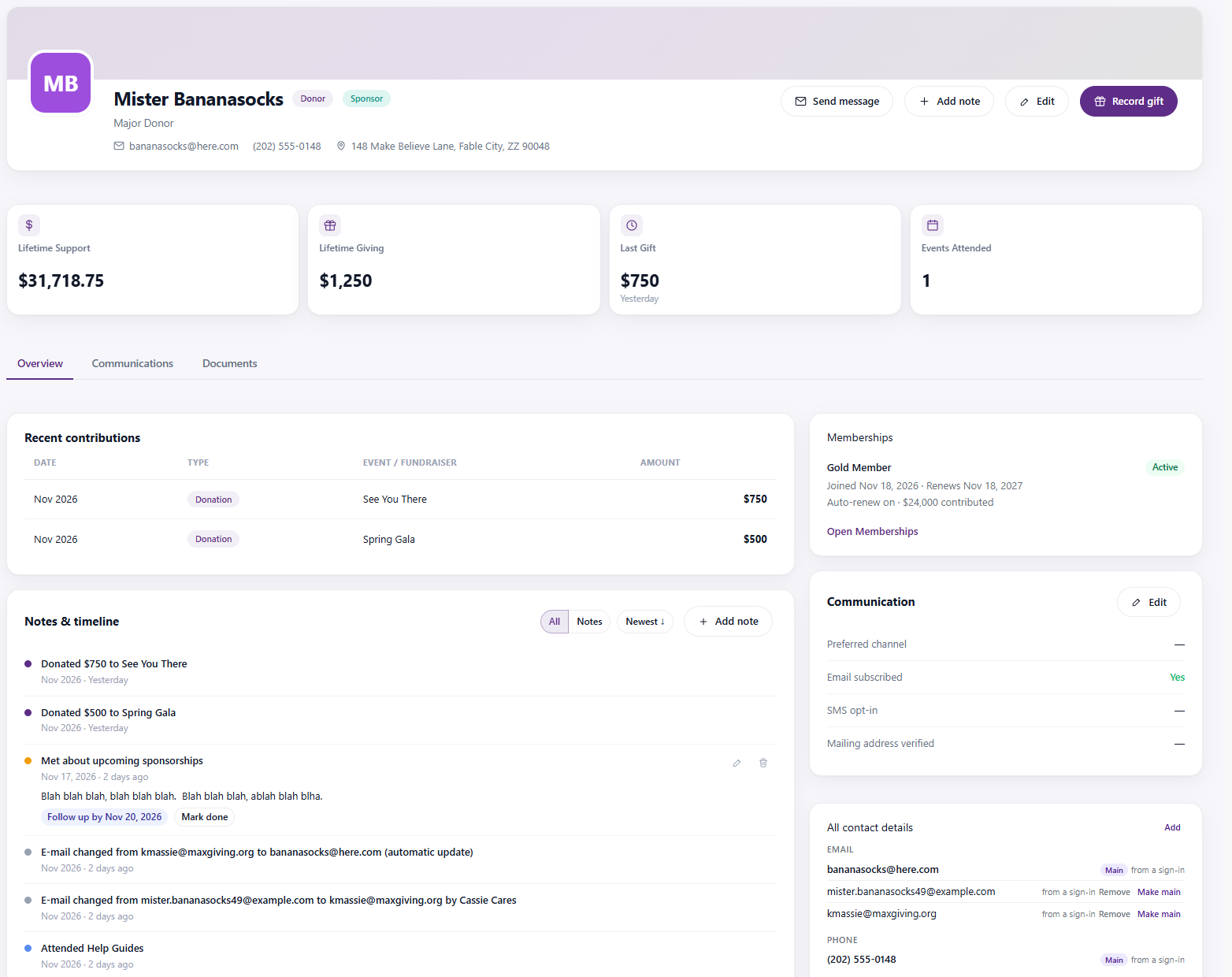
A contact's giving history provides a quick overview of their financial support and fundraising activity. From an individual profile, you can review lifetime support, lifetime giving, the most recent gift, and a list of recorded contributions.
💡 Good to Know: Navigate to MaxGiving CRM > Supporters > Individuals. Search for and select an individual to open their profile. Giving information is displayed in the summary metric cubes and the Overview tab.
Viewing Giving History
- Open the Individuals page.
- Search for and select the contact you want to review.
- Open the Overview tab if it is not already selected.
Understanding the Giving Metric Cubes
Four metric cubes appear near the top of the individual profile, providing a quick summary of giving and event participation.
- Lifetime Support: Total lifetime support associated with the individual.
- Lifetime Giving: Total lifetime giving recorded for the individual.
- Last Gift: Amount of the most recent gift and when it was received.
- Events Attended: Total number of events the individual has attended.
💡 Good to Know: Lifetime Support and Lifetime Giving are separate metrics and may display different amounts.

Reviewing Recent Contributions
The Recent Contributions section is located below the metric cubes on the Overview tab. It displays individual contributions recorded for the contact.
Each contribution includes:
- Date: Month and year of the contribution.
- Type: Type of contribution, such as a donation.
- Event / Fundraiser: Event or fundraiser associated with the contribution, when applicable.
- Amount: Monetary value of the contribution.
Each contribution appears as a separate entry, making it easy to review previous gifts and identify which fundraising activities the individual has supported.
If the contact has no recorded contributions, the section displays No contributions recorded yet.

Viewing Giving Details in Quick Preview
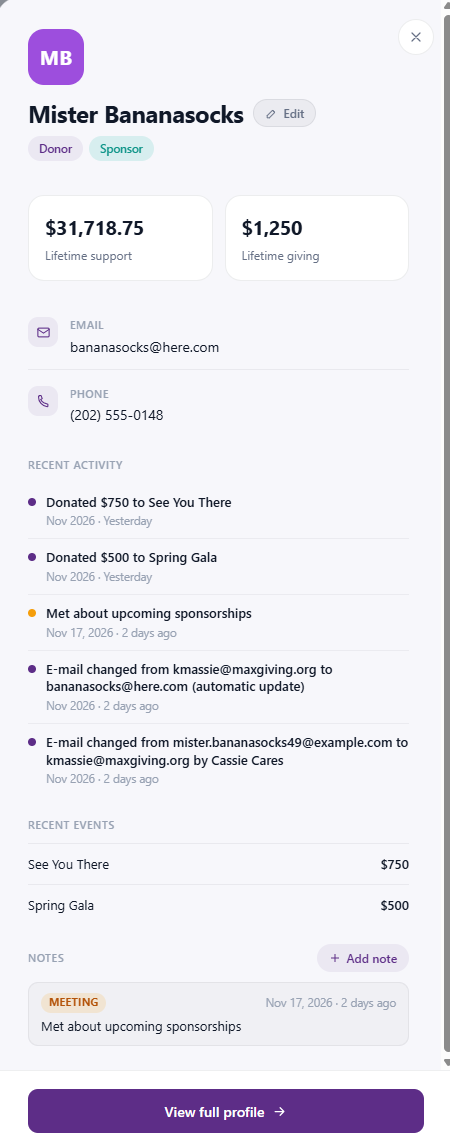
You can also view a contact's Lifetime Support, Lifetime Giving, recent donation activity, and recent events from the Quick Preview panel without opening their full profile. Click View Full Profile for additional giving details.